
Table of Contents
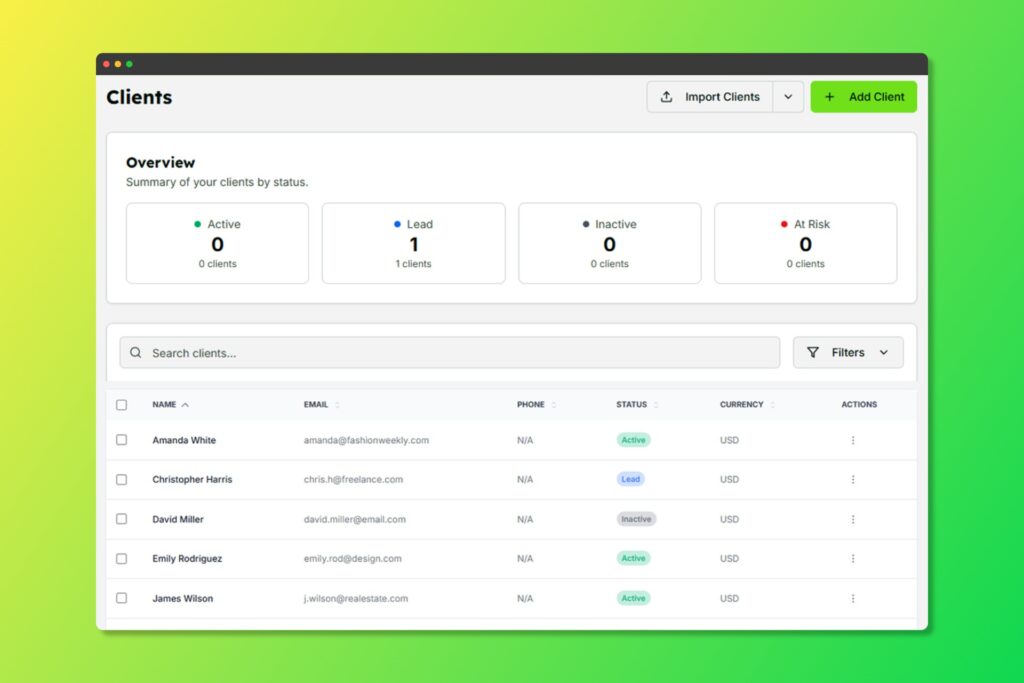
View and manage all your clients in one place
Adding a New Client #
- Navigate to Clients from the sidebar
- Click the Add Client button
- Fill in the client details:
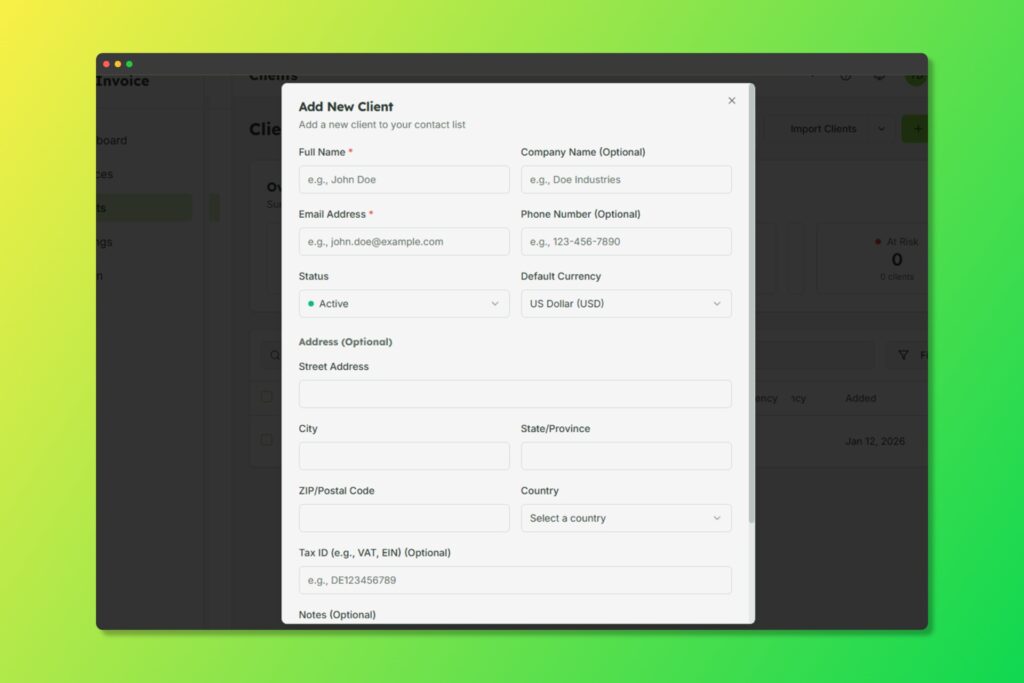
The add client form with all available fields
- Name (required)
- Email (required)
- Company (optional)
- Phone (optional)
- Address (street, city, state, zip, country)
- Tax ID (optional)
- Currency (for client-specific invoicing)
- Notes (private notes about the client)
Editing Client Information #
- Click on any client from the Clients list
- Select Edit from the client detail view
- Update the necessary fields
- Click Save Changes
Client Status #
Clients can have the following statuses:
- Active: Currently engaged clients
- Inactive: Dormant or paused relationships
- Lead: Potential clients not yet converted
- At risk: The customer hasn’t interacted for a long time
Client History #
Each client profile includes a complete history of:
- Invoices created
- Payments received
- Status changes
- Communication logs
Viewing Client Invoices #
From any client’s detail page, you can see all invoices associated with that client, including their status and total amounts.


