
Table of Contents
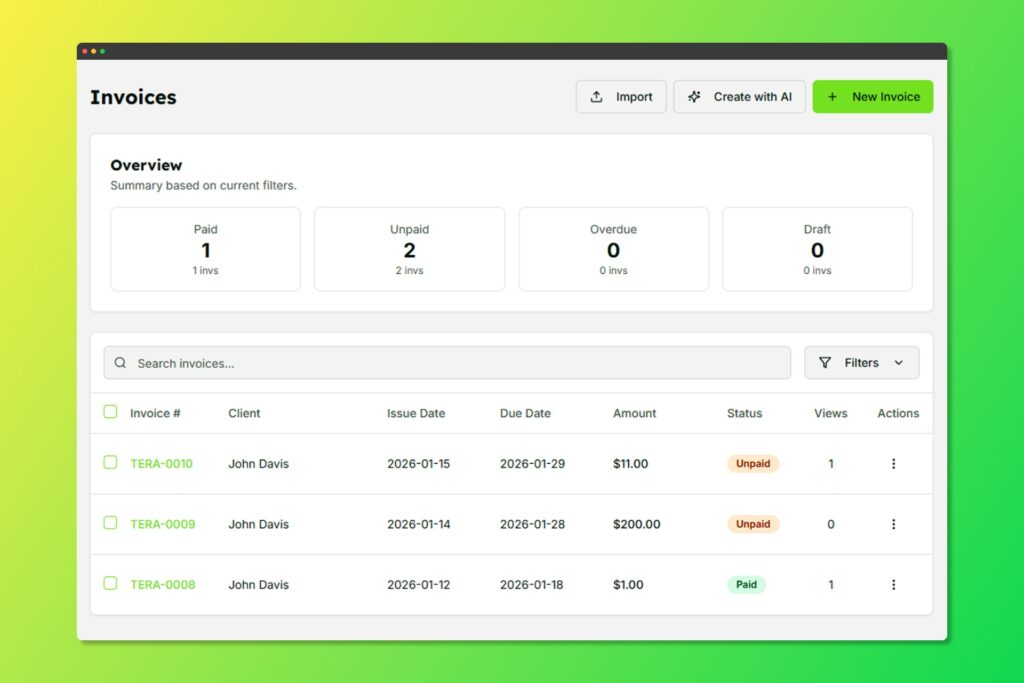
Your invoice list with status indicators and quick actions
Manual Invoice Creation #
- Navigate to Invoices from the sidebar
- Click Create Invoice
- Select a client (or create a new one inline)
- Fill in the invoice details:
The invoice creation form with line items
Basic Information #
- Invoice Title: A descriptive title for the invoice
- Invoice Number: Auto-generated or custom
- Issue Date: When the invoice is issued
- Due Date: Payment deadline
Line Items #
Add your products or services:
- Description: What you’re billing for
- Quantity: Number of units
- Unit Price: Price per unit
- Total: Automatically calculated
You can:
- Add multiple line items
- Reorder items via drag-and-drop
- Import items from service templates
- Delete items as needed
Discounts #
Apply discounts to your invoice:
- Percentage discount: e.g., 10% off
- Fixed amount discount: e.g., $50 off
Tax #
Add tax as a percentage of the subtotal.
Notes #
Include additional information such as:
- Payment terms
- Bank details
- Thank you messages
- Special instructions
Invoice Statuses #
| Status | Description |
|---|---|
| Draft | Invoice created but not yet sent |
| Sent | Invoice has been sent to the client |
| Viewed | Client has opened the invoice |
| Paid | Payment has been received |
| Overdue | Past the due date without payment |
| Cancelled | Invoice has been cancelled |


